

前面花了几个章节制作的康威生命游戏,功能已经大致上完成了,不过我们还无法确定其性能是否还有可以优化的空间,必须要用一些方式来侦测才行。
侦测 Canvas 的 FPS (Frames Per Second)
测量性能的指针,最常用的自然就是整个游戏画面的 FPS 了。
我们可以添加以下这个 TypeScript 模块,将其存盘为 www/src/fps.ts。
const BUFFER_SIZE = 60;
export class Fps {
private readonly frames: number[] = [];
private lastFrameTimeStamp: number = performance.now();
constructor(private readonly element: HTMLElement) {
this.update();
}
private update(numbers = { mean: 0, min: 0, max: 0 }) {
this.element.innerHTML = `  FPS<br/>Mean: ${Math.round(numbers.mean)}<br/> Min: ${Math.round(numbers.min)}<br/> Max: ${Math.round(numbers.max)}`;
}
render() {
const now = performance.now();
const interval = now - this.lastFrameTimeStamp;
this.lastFrameTimeStamp = now;
const fps = 1 / interval * 1000;
this.frames.push(fps);
if (this.frames.length > BUFFER_SIZE) {
this.frames.shift();
}
let min = Infinity;
let max = -Infinity;
let sum = 0;
for (const frame of this.frames) {
sum += frame;
min = Math.min(frame, min);
max = Math.max(frame, max);
}
const mean = sum / this.frames.length;
this.update({ mean, min, max });
}
show() {
this.element.classList.remove("fps-hide");
}
hide() {
this.element.classList.add("fps-hide");
}
}
这个模块可以用来测量游戏画面的 FPS,并且输出到某个 HTML 元素中。
所以我们就来添加一个专门显示 FPS 的元素到 HTML 网页中吧!
<!DOCTYPE html>
<html>
<head>
    <meta charset="utf-8"/>
    <title>Conway's Game of Life</title>
    <link href="./css/bundle.min.css" rel="stylesheet">
</head>
<body>
    <div id="fps" class="fps-hide"></div>
    <div id="controls">
        <button id="play-pause">Play</button>
        <button id="next">Next</button>
        <button id="clear">Clear</button>
    </div>
    <canvas id="game-of-life-canvas"></canvas>
    <script src="./js/bundle.min.js"></script>
</body>
</html>
SCSS/CSS 中也要加入以下两个元素:
#fps {
    font-family: monospace, monospace;
    color: #FFFFFF;
    background-color: rgba(0, 0, 0, 0.5);
    position: fixed;
    bottom: 0;
    left: 0;
    padding: 5px;
}

.fps-hide {
    display: none !important;
}
接着就是在 www/src/lib.ts 中引用 www/src/fps.ts 模块,并创建 Fps 的实体,在 renderLoop 函数中调用 Fps 的 render 方法。当然,为了让 FPS 侦测结果能够在游戏播放时显示在 HTML 网页上,播放与暂停按钮的事件也要去调用 show 和 hide 方法。
代码修改如下:
...

import { Fps } from "./fps.js";

...

export const init = () => {
    ...

    const fps = new Fps(document.getElementById("fps") as HTMLDivElement);

    const renderLoop = () => {
        fps.render();

        universe.tick();

        drawCells();

        if (!pause) {
            requestAnimationFrame(renderLoop);
        }
    };

    ...

    buttonPlayPause.addEventListener("click", () => {
        if (pause) {
            pause = false;
            requestAnimationFrame(renderLoop);

            fps.show();

            ...
        } else {
            pause = true;

            fps.hide();

            ...
        }
    });
};
修改完成后,在康威生命游戏开始播放时,HTML 网页的左下角就会出现 FPS 的侦测结果了。
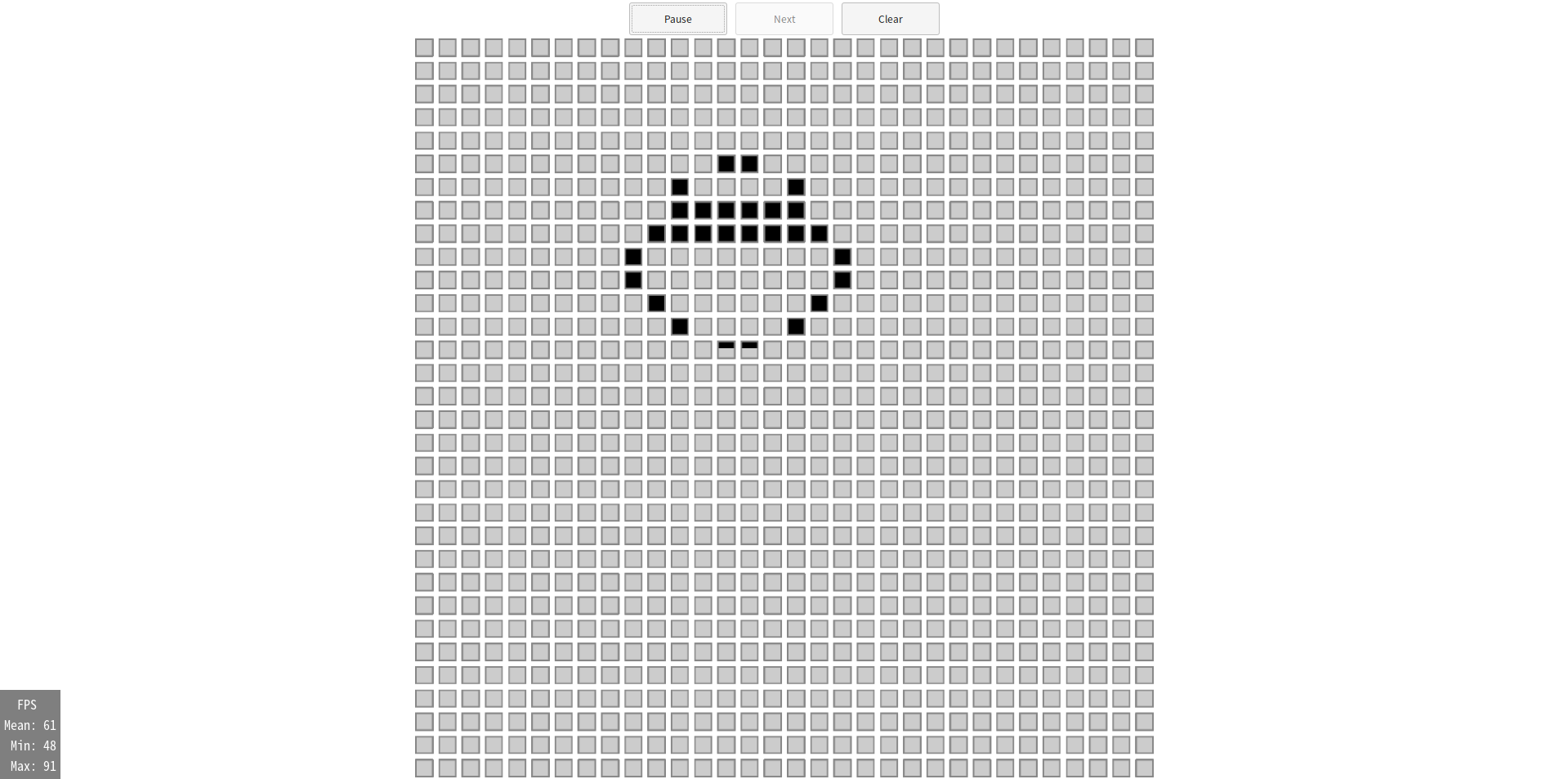
正常情况下,目前我们制作的康威生命游戏的平均 FPS 是能达到 60 的!
测量某段程序的运行时间
利用 console 提供的 time 和 timeEnd 函数,我们可以很轻易地测量某段程序的运行时间。
例如将 TypeScript 程序改写如下:
...

export const init = () => {
    ...

    const renderLoop = () => {
        ...

        console.time("tick_tock");

        universe.tick();

        console.timeEnd("tick_tock");

        ...
    };

    ...
};
这边要注意的是,使用 console 的 time 和 timeEnd 函数时可传入一个标签,用来分辨要用哪个计时器。
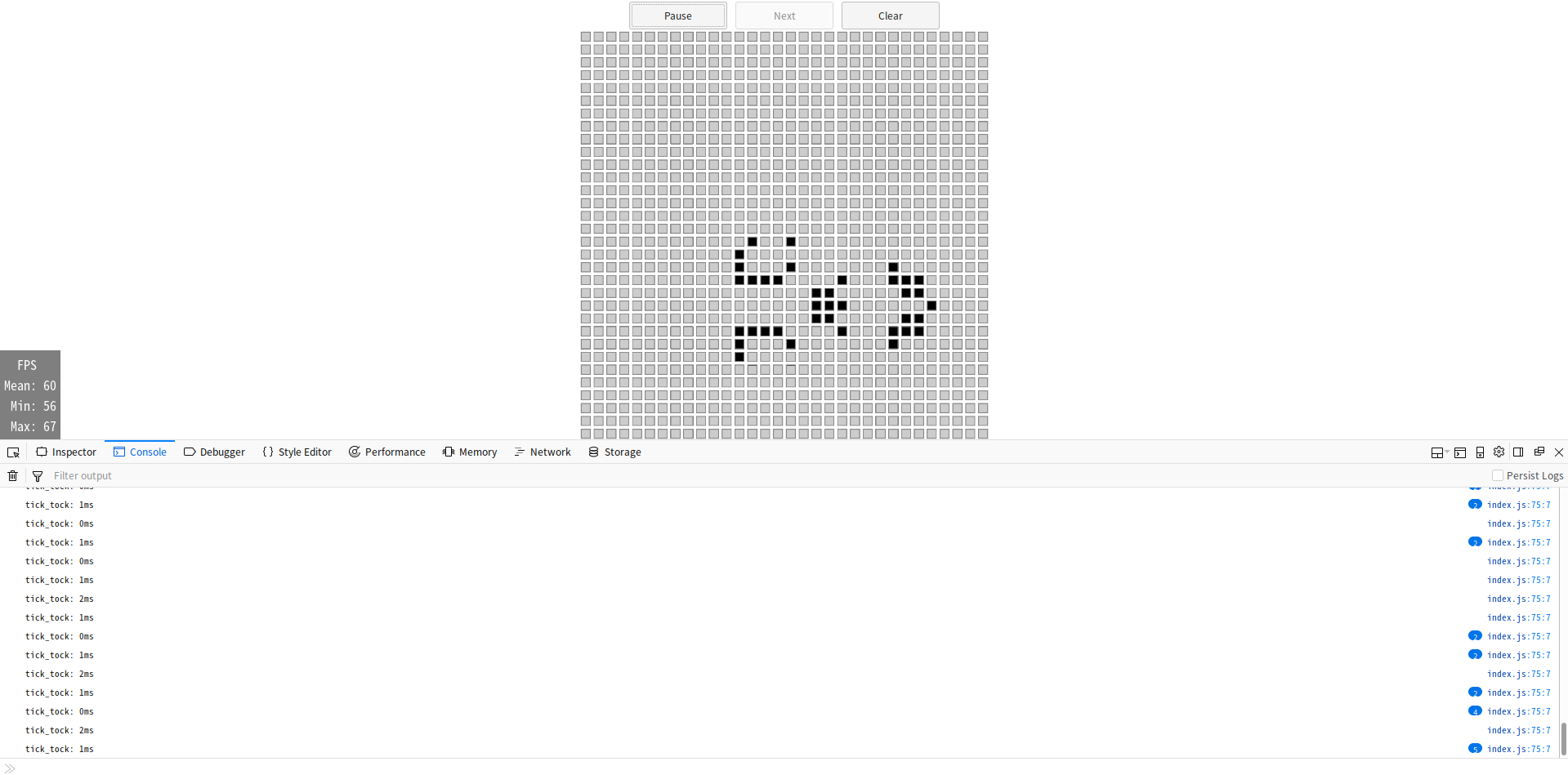
如下图所示,当康威生命游戏正在播放时,网页浏览器的主控台中就会显示出 tick 方法的运行时间。
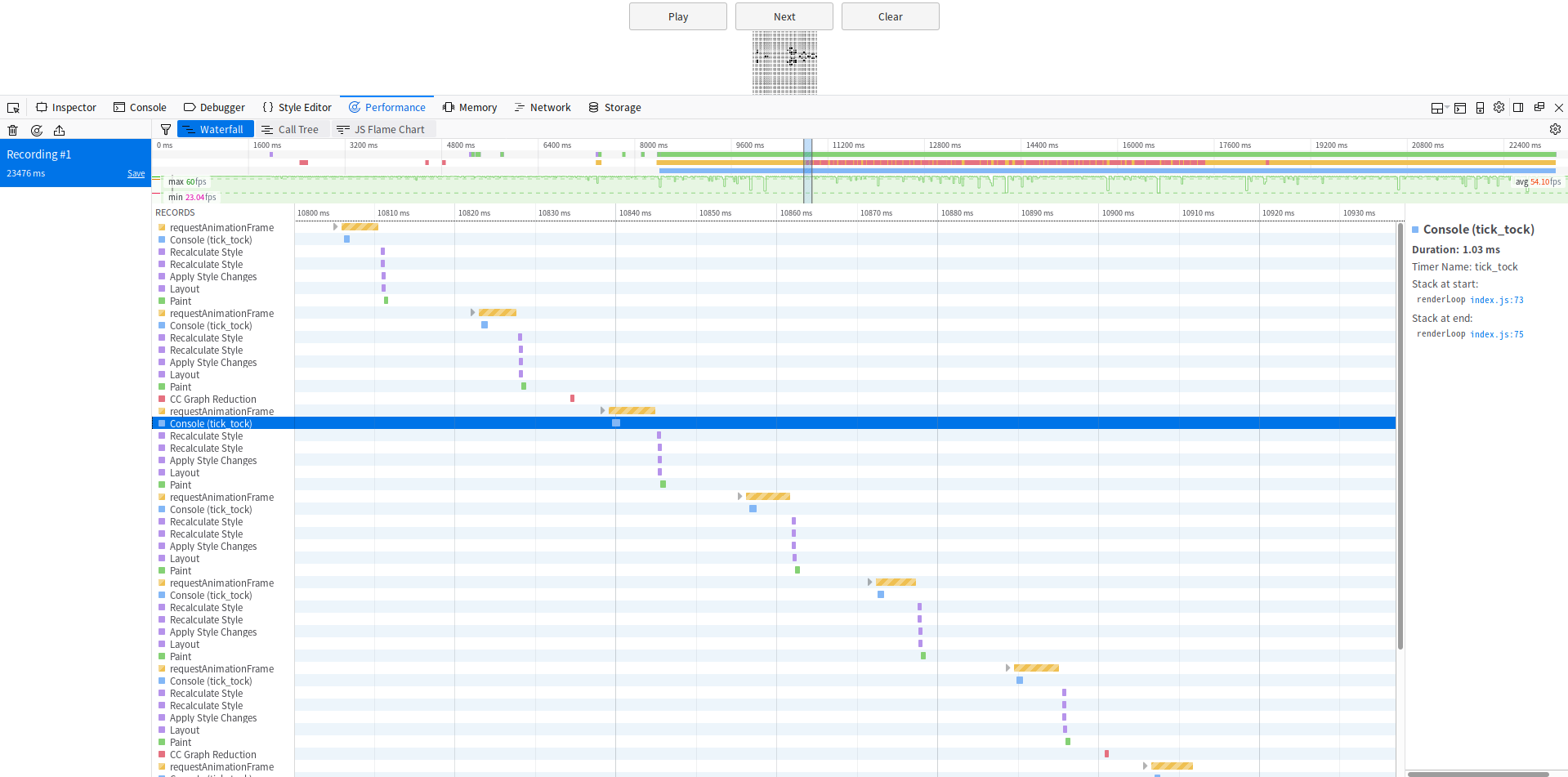
除此之外,在网页浏览器提供的性能检查工具中,也可以看到 console 的 time 和 timeEnd 函数所测量到的运行时间。
找出使性能变差的代码
在 32x32 尺寸的培养皿下,运行一次 requestAnimationFrame 函数的所需时间约为 5 毫秒,运行一次 tick 所花的时间为 1 毫秒左右。为了使运行时间更容易观察,我们先改变 JavaScript 程序,将培养皿的尺寸加到 128x128,这样运行一次 requestAnimationFrame 函数的所需时间就大概是 42 毫秒。在这个尺寸的培养皿下,运行一次 tick 所花的时间为 4 毫秒左右。所以我们从增长比例来判断可以知道 tick 不会是造成 requestAnimationFrame 函数运行时间增长的主因。
那么会大大影响运行速度的因素大概就是 drawCells 函数了。经过不断地修改程序和测量性能,我们可以发现,在循环中指派 ctx.fillStyle 的值会严重地影响程序性能。所以 drawCells 函数需要被改写成以下这样:
...

export const init = () => {
    const drawCells = () => {
        ...

        ctx.strokeStyle = BORDER_COLOR;
        ctx.lineWidth = borderSize;

        const drawRect = (fillStyle: string, block: Block) => {
            ctx.fillStyle = fillStyle;

            for (let row = 0;row < HEIGHT;row++) {
                for (let column = 0;column < WIDTH;column++) {
                    const index = universe.get_index(row, column);

                    if (blocks[index] === block) {
                        const x = (column * size) + borderSize + marginSize;
                        const y = (row * size) + borderSize + marginSize;

                        ctx.fillRect(x, y, blockSize, blockSize);
                        ctx.strokeRect(x, y, blockSize, blockSize);
                    }
                }
            }
        };

        drawRect(BLOCK_COLOR, Block.NoCell);
        drawRect(CELL_COLOR, Block.HasCell);
    };
};
如此修改完之后,requestAnimationFrame 函数的运行所需时间只剩下 28 毫秒左右,已被显著地优化!
限制 FPS
由于我们使用 requestAnimationFrame 函数来绘制画面,这个函数会根据屏幕的刷新频率来决定其运行的速度。一般屏幕的刷新频率为 60Hz,所以 requestAnimationFrame 函数绘制画面的速度也大概是 60fps。不过在这个康威生命游戏中,过快的 FPS 会导致游戏画面中的活细胞像是发疯一般乱窜,因此最好加个机制来限制画面的更新频率。
将 TypeScript 程序改写如下:
...

const WIDTH = 32;
const HEIGHT = 32;
const MAX_FPS = 15;

...

export const init = () => {
    ...

    const fps = new Fps(document.getElementById("fps") as HTMLDivElement);
    const fpsInterval = 1 / MAX_FPS * 1000;

    let startTime = Date.now();

    const renderLoop = () => {
        const now = Date.now();

        if (now - startTime > fpsInterval) {
            startTime = now;

            fps.render();

            universe.tick();

            drawCells();
        }

        if (!pause) {
            requestAnimationFrame(renderLoop);
        }
    };

    ...
};
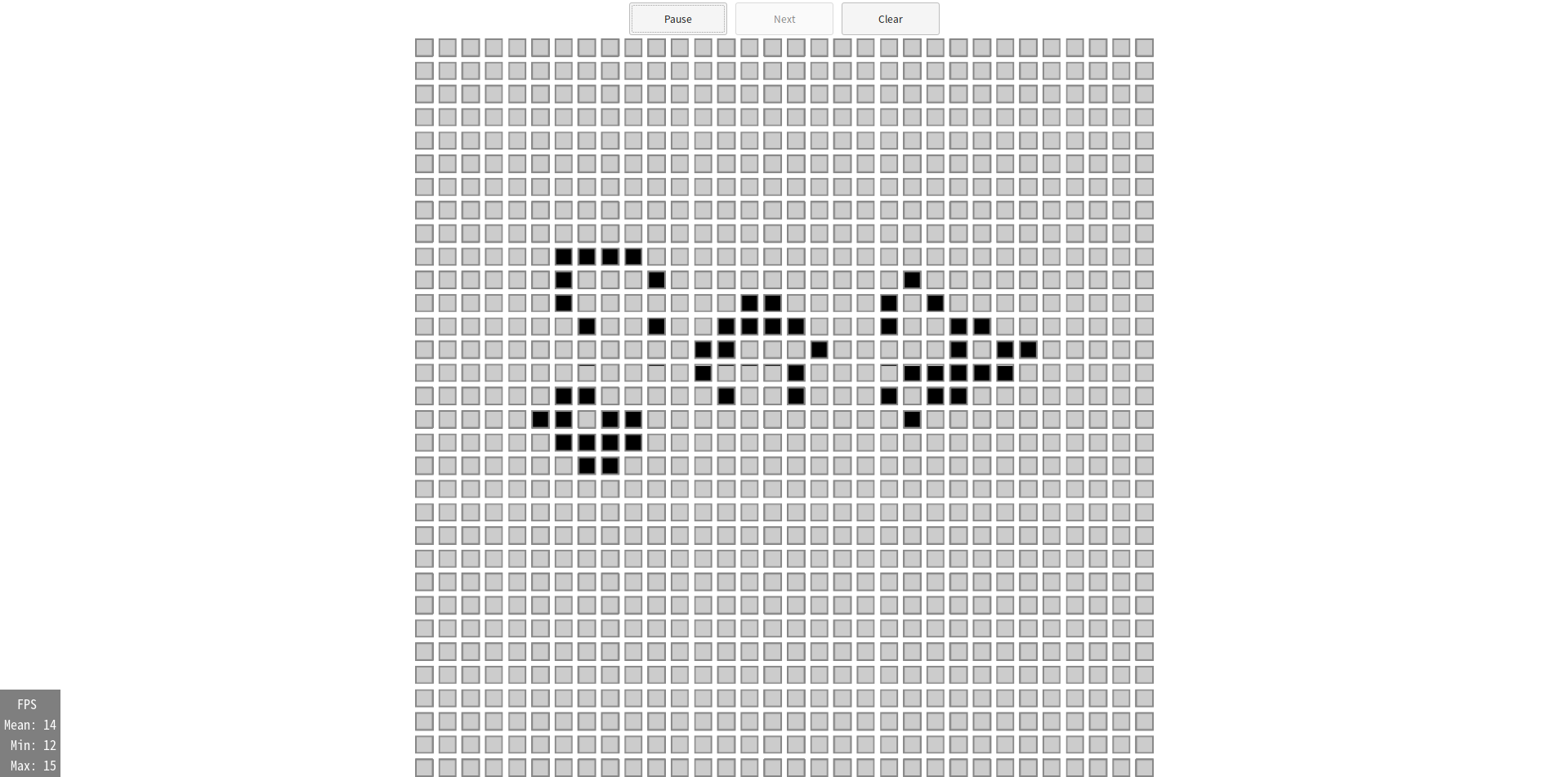
将康威生命游戏的最大 FPS 限制在 15 之后,游戏体验变得更好了呢!
总结
康威生命游戏至此可以说是已经制作完成了,展示网页的链接如下:
在下一个章节中,我们要来针对 WebAssembly 程序的大小进行深入的探讨。
下一章:缩小 WebAssembly 程序。