
当用户在使用 Android App 时,可以让 App 跳出一些浮动式、会自动关闭的消息提示用户应该要做哪些动作,或者是 App 已经完成了哪些动作,让用户清楚知道目前 App 的运行状况。要如何在 Android 实作出气泡消息呢?很简单,在 Android SDK 中就有内置「Toast」类别可以做到这样的功能。
Toast 的使用方法
简易作法
最简单显示出气泡消息的作法,就是直接使用 Toast 类别下的 makeText 方法来产生出一个 Toast 对象,再用 show 方法将这个 Toast 对象显示出来。如以下代码:
Toast.makeText(context, text, duration).show();
其中需要注意的是 duration 这个参数,duration 顾名思义就是 Toast 消息显示的持续时间,只有两个整数数值有作用,分别是短时间的「Toast.LENGTH_SHORT」和长时间的「Toast.LENGTH_LONG」。在预设的情况下,短时间大约是 2 秒、而长时间大约是 3.5 秒。
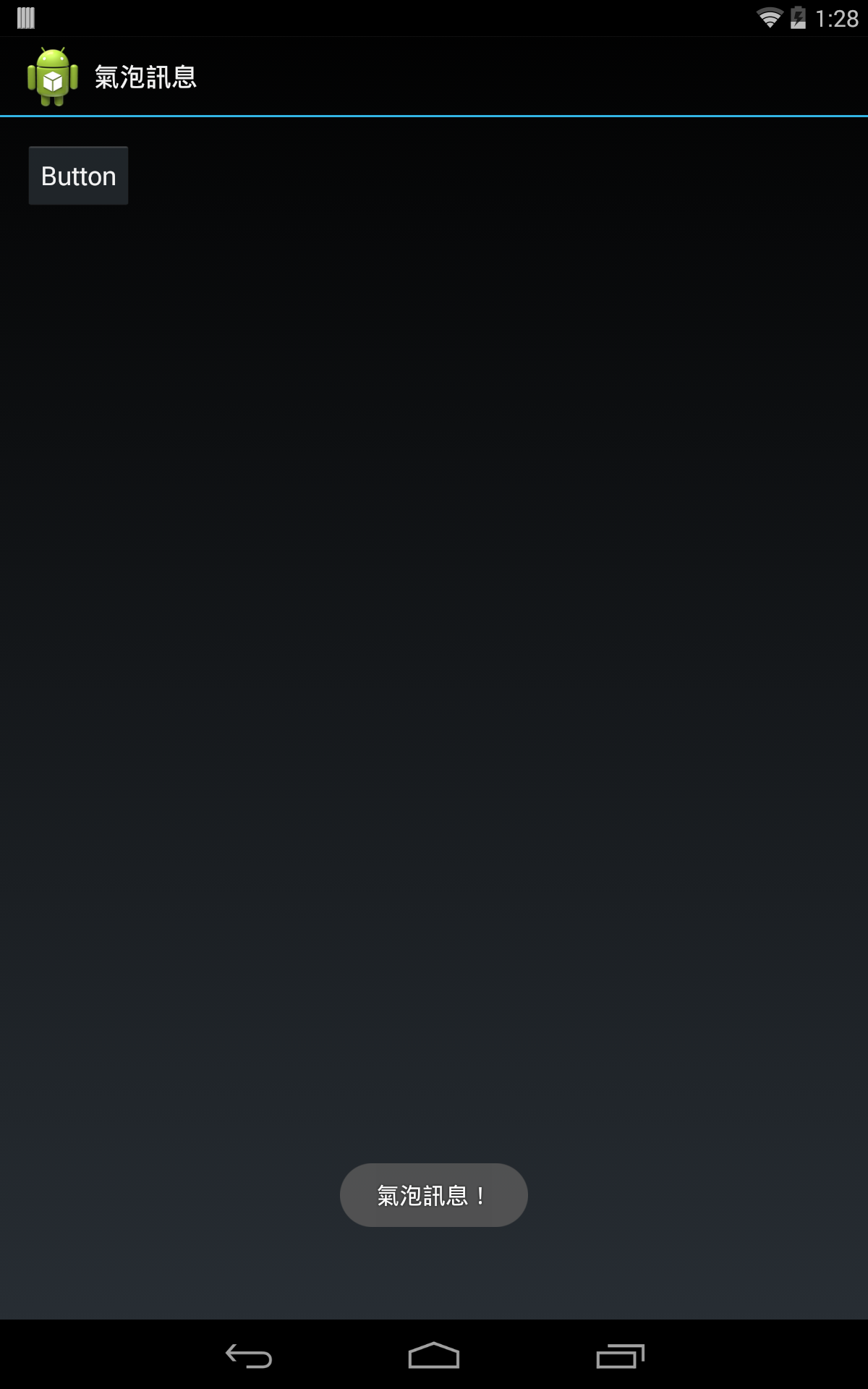
直接使用 makeText 产生出来的 Toast,样式和位置由系统来决定,如下图是直接使用 Toast 的 makeText 方法和 show 方法显示出来的气泡消息:
用这种方式来显示出气泡消息的话,会有一个很大的缺点,那就是如果在气泡消息尚未消失前,又使用了一次 makeText 方法和 show 方法,新的气泡消息就会被安排在旧的气泡消息消失后才会显示,而不是立刻将旧的气泡消息盖过(垫在下面),也不是直接改变旧气泡消息的文字。当气泡消息一多,可是要等很久才可以把所有的消息显示完哦!
高级作法
为了避免发生上述使用简易作法产生的问题,我们必须要管理 makeText 之后所得到的 Toast 对象。可以使用一个对象变量或是类别变量来保存 Toast 对象的参考,以供重复使用。如以下程序:
...
private static Toast toast;
...
private static void makeTextAndShow(final Context context, final String text, final int duration) {
    if (toast == null) {
        //如果还没有用过makeText方法,才使用
        toast = android.widget.Toast.makeText(context, text, duration);
    } else {
        toast.setText(text);
        toast.setDuration(duration);
    }
    toast.show();
}
...
有了上面的程序后,只要调用 makeTextAndShow 方法就可以显示出不会排队延迟的气泡消息了!
自订 Toast 的样式
直接使用 makeText 产生出来的 Toast 对象,是使用系统内置的样式,因此可能会因 App 运行在不同的 Android 设备上而有所改变。如果想要自订 Toast 的样式,就不该使用 makeText 方法,应该直接用 new 实体化一个新的 Toast 对象,接着再指定一个 View 给他,可以将上面的 makeTextAndShow 方法改写如下:
...
private static Toast toast;
private static TextView toastText;
...
private static void makeTextAndShow(final Context context, final String text, final int duration) {
    if (toast == null) {
        //如果还没有创建过Toast,才创建
        final ViewGroup toastView = new FrameLayout(context); // 用来装toastText的容器
        final FrameLayout.LayoutParams flp = new FrameLayout.LayoutParams(FrameLayout.LayoutParams.WRAP_CONTENT, FrameLayout.LayoutParams.WRAP_CONTENT);
        final GradientDrawable background = new GradientDrawable();
        toastText = new TextView(context);
        toastText.setLayoutParams(flp);
        toastText.setSingleLine(false);
        toastText.setTextSize(18);
        toastText.setTextColor(Color.argb(0xAA, 0xFF, 0xFF, 0xFF)); // 设置文字颜色为有点透明的白色
        background.setColor(Color.argb(0xAA, 0xFF, 0x00, 0x00)); // 设置气泡消息颜色为有点透明的红色
        background.setCornerRadius(20); // 设置气泡消息的圆角程度

        toastView.setPadding(30, 30, 30, 30); // 设置文字和边界的距离
        toastView.addView(toastText);
        toastView.setBackgroundDrawable(background);

        toast = new Toast(context);
        toast.setView(toastView);
    }
    toastText.setText(text);
    toast.setDuration(duration);
    toast.show();
}
...
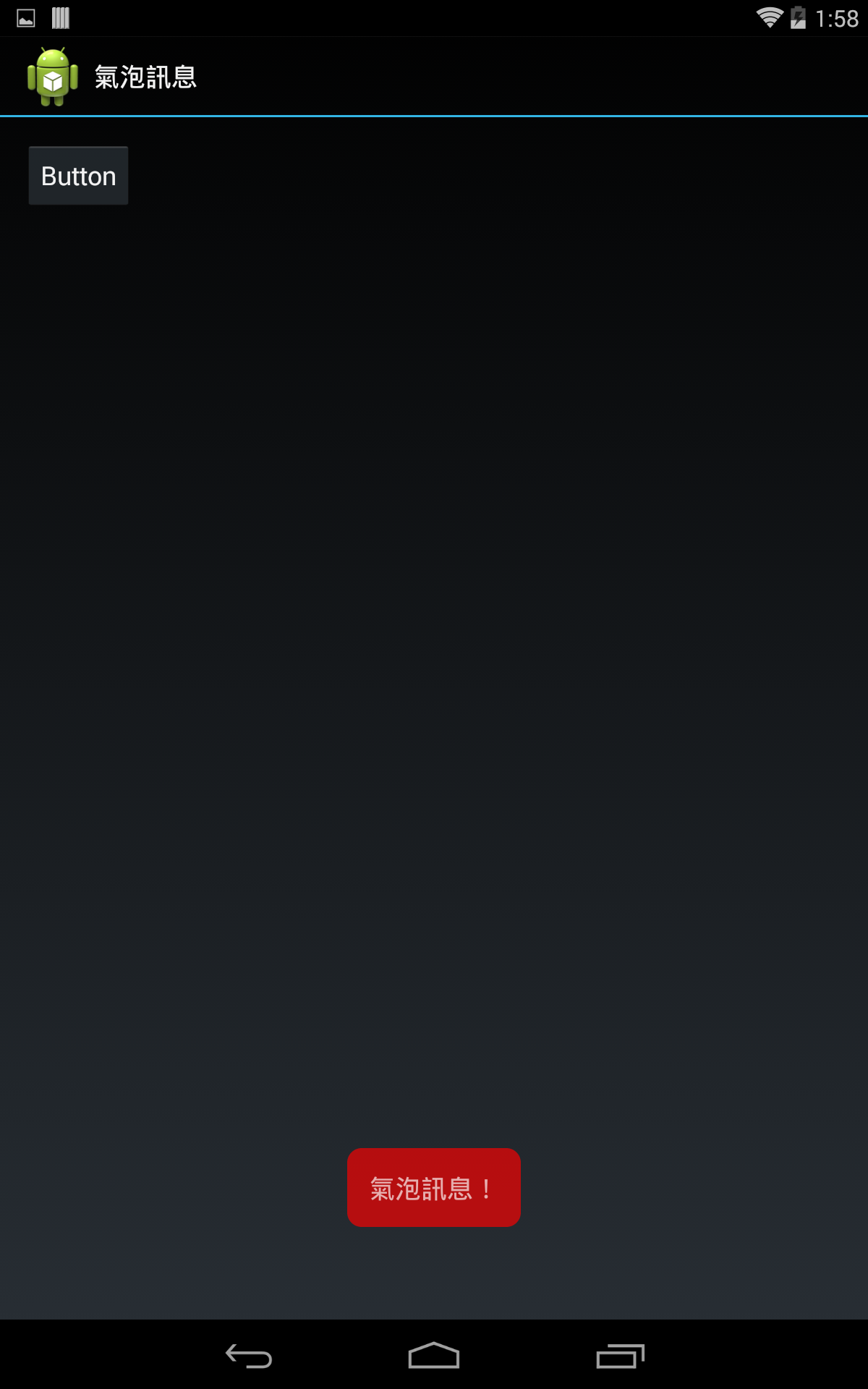
运行结果:
自制 Toast 类别
由于 Toast 消息算是 Android App 常用到的功能,因此可以将它另写成一个类别来处理:
/**
 * Android 气泡消息
 *
 * @author magiclen
 *
 */
public class Toast {

    // -----类别常数-----
    /**
     * 短时间消息
     */
    public static final int SHORT = android.widget.Toast.LENGTH_SHORT;

    /**
     * 长时间消息
     */
    public static final int LONG = android.widget.Toast.LENGTH_LONG;

    /**
     * 类别位置
     *
     * @author magiclen
     *
     */
    public static enum Position {
        CENTER, CENTER_BOTTOM, CENTER_TOP, CENTER_LEFT, CENTER_RIGHT, LEFT_TOP, RIGHT_TOP, LEFT_BOTTOM, RIGHT_BOTTOM;
    }

    /**
     * 调整Toast与屏幕边界的距离,数值愈大距离愈远
     */
    private static final int offsetFactor = 12;

    // -----类别变量-----
    /**
     * 保存Context的参考
     */
    private static Context context;

    /**
     * 保存Toast的参考
     */
    private static android.widget.Toast toast;

    /**
     * 保存Toast的位置
     */
    private static Position toastPosition = Position.CENTER_BOTTOM;

    /**
     * 保存X边界
     */
    private static int offsetX;

    /**
     * 保存Y边界
     */
    private static int offsetY;

    /**
     * 保存用户使用的ToastView
     */
    private static ToastView toastView;

    /**
     * 设置Context给Toast使用,建议在Activity onCreate的时候都指定一次,<br/>
     * 避免参考到的Context已经被释放掉,或是变量被清空
     *
     * @param context
     */
    public static void setContext(final Context context) {
        Toast.context = context;
        useDefaultOffset();
    }

    /**
     * 指定ToastView,这个设置只有在重新调用showToast方法后才可以看到结果
     *
     * @param toastView 传入ToastView对象
     */
    public static void setToastView(final ToastView toastView) {
        Toast.toastView = toastView;
        toast = null;
    }

    /**
     * 设置Toast的位置,这个设置只有在重新调用showToast方法后才可以看到结果
     *
     * @param position 传入Toast的位置
     */
    public static void setPosition(final Position position) {
        if (position != null) {
            Toast.toastPosition = position;
        } else {
            Toast.toastPosition = Position.CENTER_BOTTOM;
        }
        useDefaultOffset();
    }

    /**
     * 设置Toast的位置,这个设置只有在重新调用showToast方法后才可以看到结果
     *
     * @param position 传入Toast的位置
     * @param offsetX 传入X位移量
     * @param offsetY 传入Y位移量
     */
    public static void setPosition(final Position position, final int offsetX, final int offsetY) {
        if (position != null) {
            Toast.toastPosition = position;
        } else {
            Toast.toastPosition = Position.CENTER_BOTTOM;
        }
        setOffset(offsetX, offsetY);
    }

    /**
     * 使用预设的位移
     */
    private static void useDefaultOffset() {
        final DisplayMetrics dm = context.getResources().getDisplayMetrics();
        setOffset(dm.widthPixels / offsetFactor, dm.heightPixels / offsetFactor);
    }

    /**
     * 设置气泡消息的位移
     *
     * @param offsetX 传入X位移量
     * @param offsetY 传入Y位移量
     */
    private static void setOffset(final int offsetX, final int offsetY) {
        Toast.offsetX = offsetX;
        Toast.offsetY = offsetY;
    }

    /**
     * 显示气泡消息(短时间)
     *
     * @param text 传入消息内容
     */
    public static void showToast(final String text) {
        showToast(text, android.widget.Toast.LENGTH_SHORT);
    }

    /**
     * 创建Toast对象
     *
     * @param text 传入消息内容
     * @param duration 传入消息维持的时间
     * @return 传回Toast对象
     */
    private static android.widget.Toast makeText(final String text, final int duration) {
        if (toastView != null) {
            final android.widget.Toast toast = new android.widget.Toast(context);
            toastView.setText(text);
            toast.setDuration(duration);
            toast.setView(toastView);
            return toast;
        } else {
            return android.widget.Toast.makeText(context, text, duration);
        }
    }

    /**
     * 显示气泡消息
     *
     * @param text 传入消息内容
     * @param duration 传入消息维持的时间
     */
    public static void showToast(final String text, final int duration) {
        if (toast == null) {
            // 如果Toast对象不存在,就用makeText方法创建一个新的Toast
            toast = makeText(text, duration);
        } else {
            // 如果Toast对象存在,就重设它的持续时间和消息文字
            toast.setDuration(duration);
            if (toastView == null) {
                toast.setText(text);
            } else {
                toastView.setText(text);
            }
        }

        // 设置气泡消息的位置
        int gravity = 0, offsetX = 0, offsetY = 0;
        switch (toastPosition) {
            case CENTER:
                gravity = Gravity.CENTER;
                break;
            case CENTER_BOTTOM:
                gravity = Gravity.CENTER_HORIZONTAL | Gravity.BOTTOM;
                offsetY = Toast.offsetY;
                break;
            case CENTER_TOP:
                gravity = Gravity.CENTER_HORIZONTAL | Gravity.TOP;
                offsetY = Toast.offsetY;
                break;
            case CENTER_LEFT:
                gravity = Gravity.LEFT | Gravity.CENTER_VERTICAL;
                offsetX = Toast.offsetX;
                break;
            case CENTER_RIGHT:
                gravity = Gravity.RIGHT | Gravity.CENTER_VERTICAL;
                offsetX = Toast.offsetX;
                break;
            case LEFT_TOP:
                gravity = Gravity.LEFT | Gravity.TOP;
                offsetX = Toast.offsetX;
                offsetY = Toast.offsetY;
                break;
            case LEFT_BOTTOM:
                gravity = Gravity.LEFT | Gravity.BOTTOM;
                offsetX = Toast.offsetX;
                offsetY = Toast.offsetY;
                break;
            case RIGHT_TOP:
                gravity = Gravity.RIGHT | Gravity.TOP;
                offsetX = Toast.offsetX;
                offsetY = Toast.offsetY;
                break;
            case RIGHT_BOTTOM:
                gravity = Gravity.RIGHT | Gravity.BOTTOM;
                offsetX = Toast.offsetX;
                offsetY = Toast.offsetY;
                break;
        }
        toast.setGravity(gravity, offsetX, offsetY);
        // 显示出气泡消息
        toast.show();
    }

    /**
     * 显示气泡消息(短时间)
     *
     * @param textId 传入String Resoure的ID,或是整数数字
     */
    public static void showToast(final int textId) {
        showToast(textId, android.widget.Toast.LENGTH_SHORT);
    }

    /**
     * 显示气泡消息
     *
     * @param textId 传入String Resoure的ID,或是整数数字
     * @param duration 传入消息维持的时间
     */
    public static void showToast(final int textId, final int duration) {
        String text;
        try {
            // 尝试取得String Resource
            text = context.getResources().getString(textId);
        } catch (final Exception ex) {
            // 若String Resource取得失败,则直接使用整数作为气泡消息
            text = String.valueOf(textId);
        }
        showToast(text, duration);
    }

    /**
     * 显示气泡消息(短时间)
     *
     * @param decimalText 传入整数或是浮点数数字作为消息内容
     */
    public static void showToast(final double decimalText) {
        showToast(decimalText, android.widget.Toast.LENGTH_SHORT);
    }

    /**
     * 显示气泡消息
     *
     * @param decimalText 传入整数或是浮点数数字作为消息内容
     * @param duration
     */
    public static void showToast(final double decimalText, final int duration) {
        if (decimalText == Math.round(decimalText)) {
            // 如果传入的数是整数
            showToast(String.valueOf((int) decimalText), duration);
        } else {
            // 如果传入的数不是整数
            showToast(String.valueOf(decimalText), duration);
        }
    }
}
/**
 * Toast专用的View
 *
 * @author magiclen
 *
 */
public class ToastView extends FrameLayout {

    private static int DEFAULT_TEXT_SIZE = 18;
    private static int DEFAULT_TEXT_COLOR = Color.argb(0xAA, 0xFF, 0xFF, 0xFF);
    private static int DEFAULT_PADDING = 30;
    private static int DEFAULT_BACKGROUND_COLOR = Color.argb(0xAA, 0xFF, 0x00, 0x00);
    private static int DEFAULT_RADIUS = 20;

    private TextView text;
    private GradientDrawable background = new GradientDrawable();

    public ToastView(final Context context) {
        super(context);
        init(context);
    }

    public ToastView(final Context context, final AttributeSet attrs) {
        super(context, attrs);
        init(context);
    }

    public ToastView(final Context context, final AttributeSet attrs, final int defStyle) {
        super(context, attrs, defStyle);
        init(context);
    }

    private final void init(final Context context) {
        text = new TextView(context);
        final FrameLayout.LayoutParams flp = new FrameLayout.LayoutParams(FrameLayout.LayoutParams.WRAP_CONTENT, FrameLayout.LayoutParams.WRAP_CONTENT);
        text.setLayoutParams(flp);
        text.setSingleLine(false);
        text.setId(android.R.id.message);

        text.setTextSize(DEFAULT_TEXT_SIZE);
        text.setTextColor(DEFAULT_TEXT_COLOR);

        addView(text);

        setPadding(DEFAULT_PADDING, DEFAULT_PADDING, DEFAULT_PADDING, DEFAULT_PADDING);

        background.setColor(DEFAULT_BACKGROUND_COLOR);
        background.setCornerRadius(DEFAULT_RADIUS);
        setBackgroundDrawable(background);
    }

    public void setTextSize(final float size) {
        text.setTextSize(size);
    }

    public void setTextSize(final int unit, final float size) {
        text.setTextSize(unit, size);
    }

    public void setTextColor(final int color) {
        text.setTextColor(color);
    }

    public void setBackgroundColor(final int color) {
        background.setColor(color);
    }

    public void setRadius(final float radius) {
        background.setCornerRadius(radius);
    }

    public void setPadding(final int padding) {
        setPadding(padding, padding, padding, padding);
    }

    void setText(final String textString) {
        if (textString != null) {
            text.setText(textString);
        } else {
            text.setText("");
        }
    }
}
用法举例
Toast.setContext(context);
Toast.setPosition(Toast.Position.RIGHT_BOTTOM);

ToastView tv = new ToastView(this);
tv.setRadius(50);
tv.setTextSize(50);
tv.setBackgroundColor(Color.argb(0xAA, 0x00, 0xAA, 0x00));

Toast.setToastView(tv);

Toast.showToast("气泡消息!");
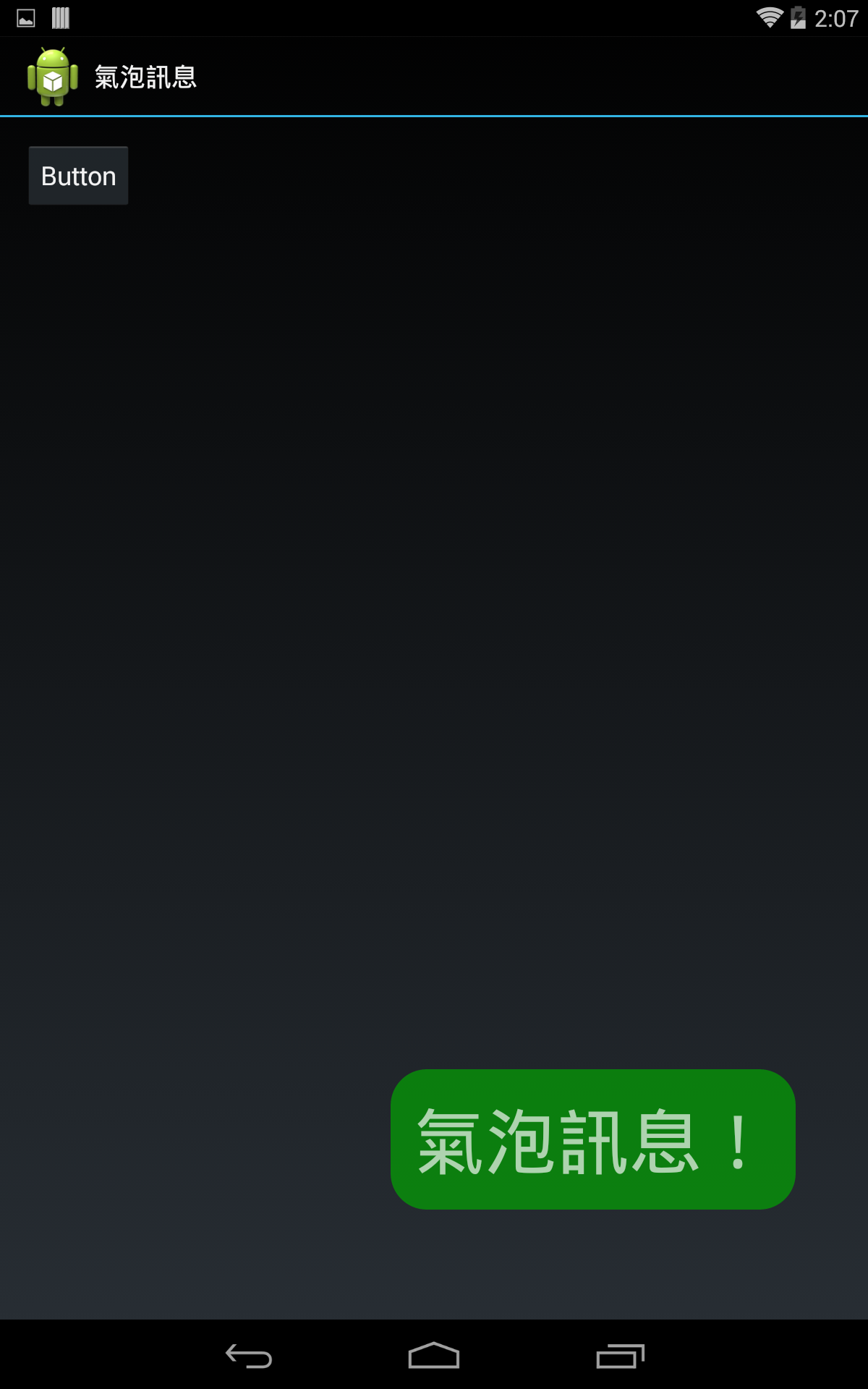
运行结果: